

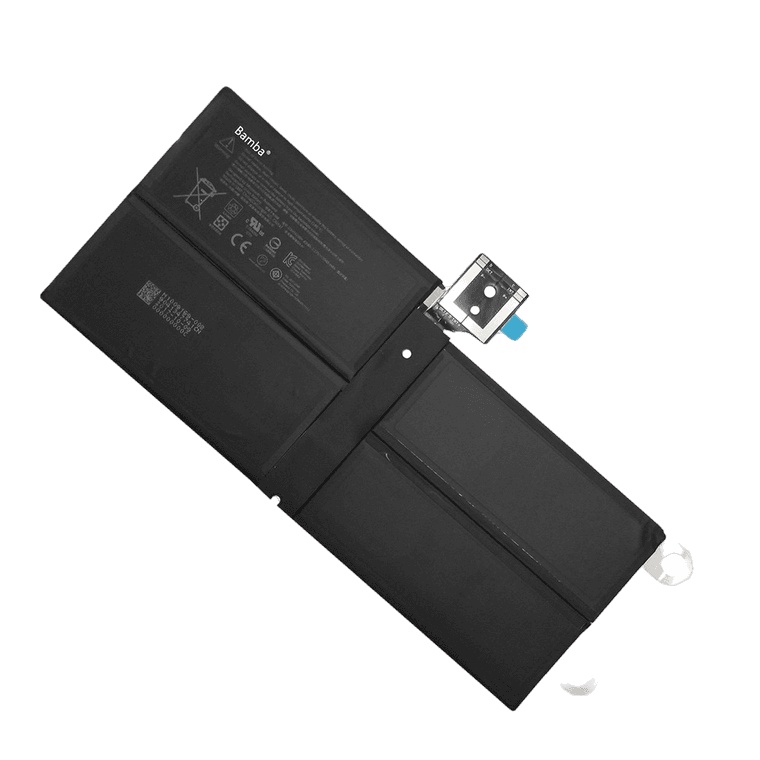

Product description:
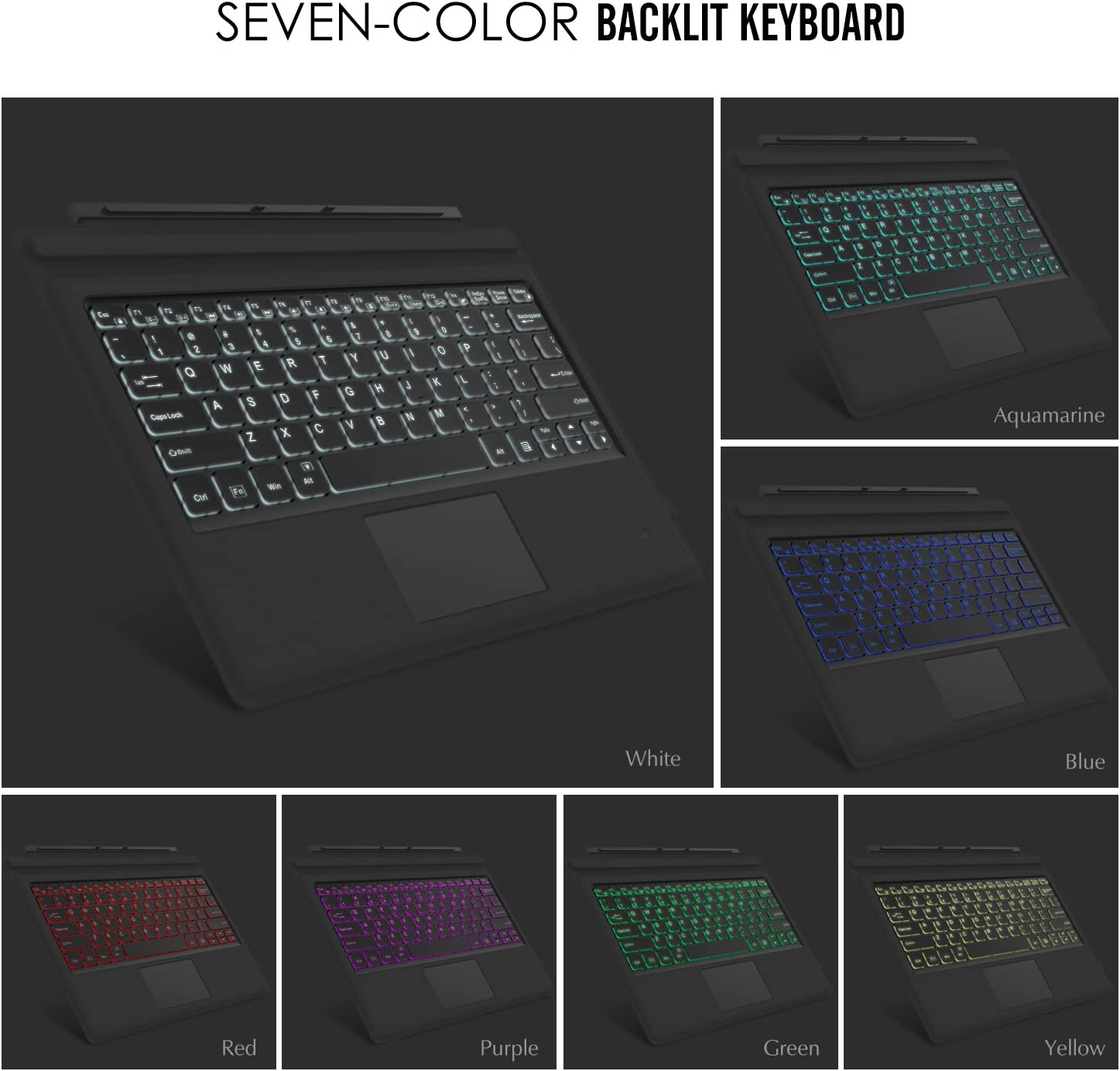
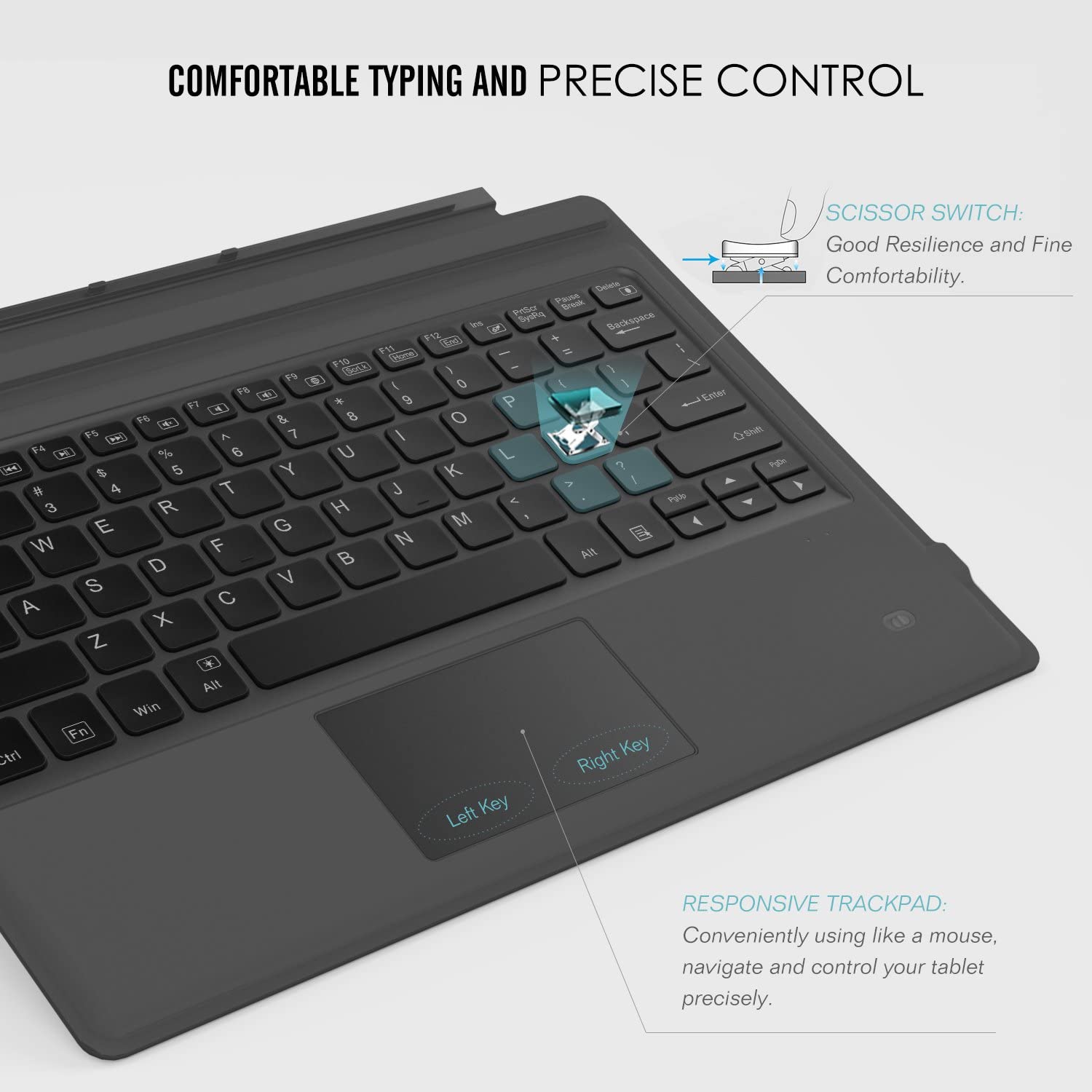
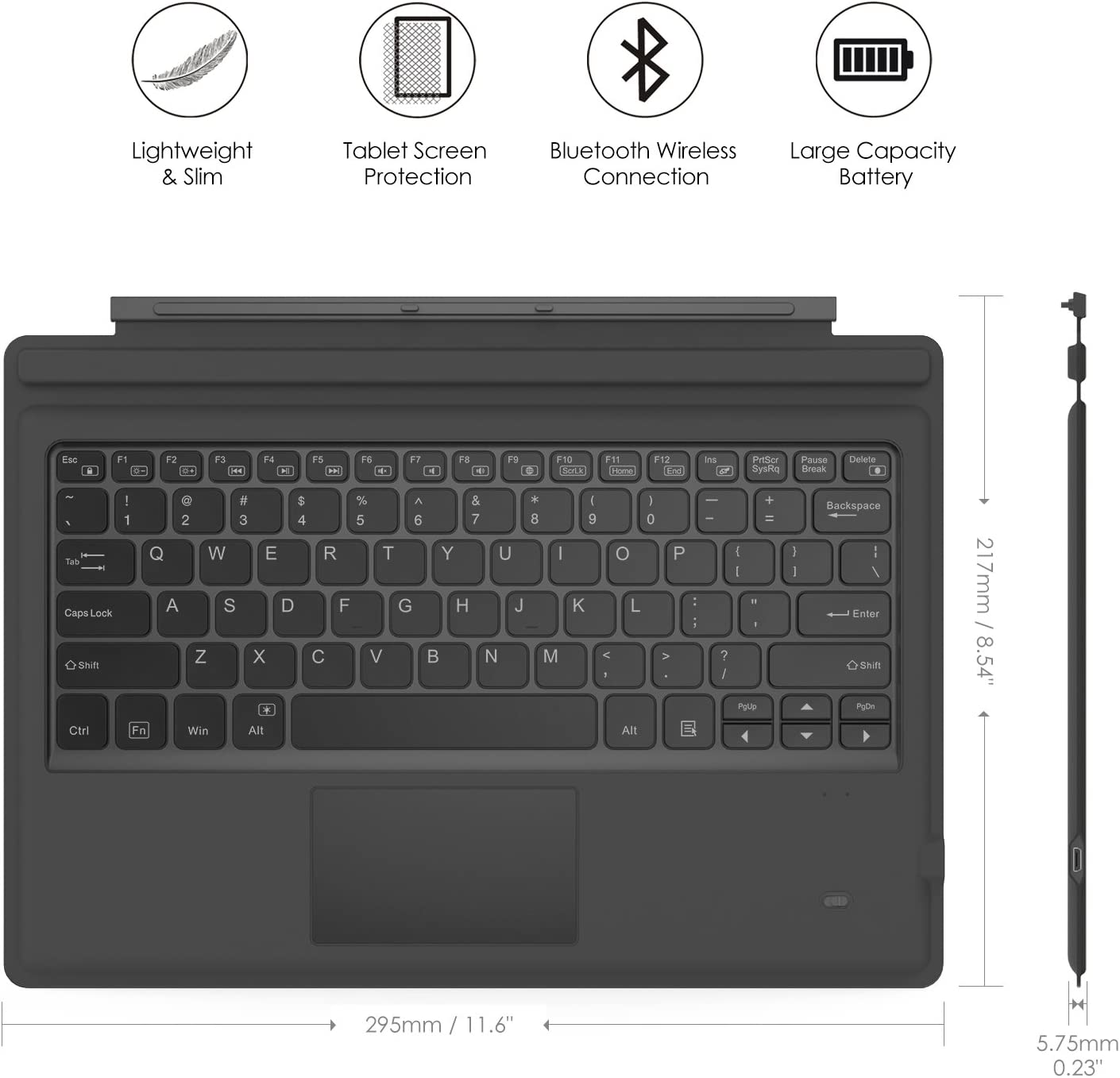
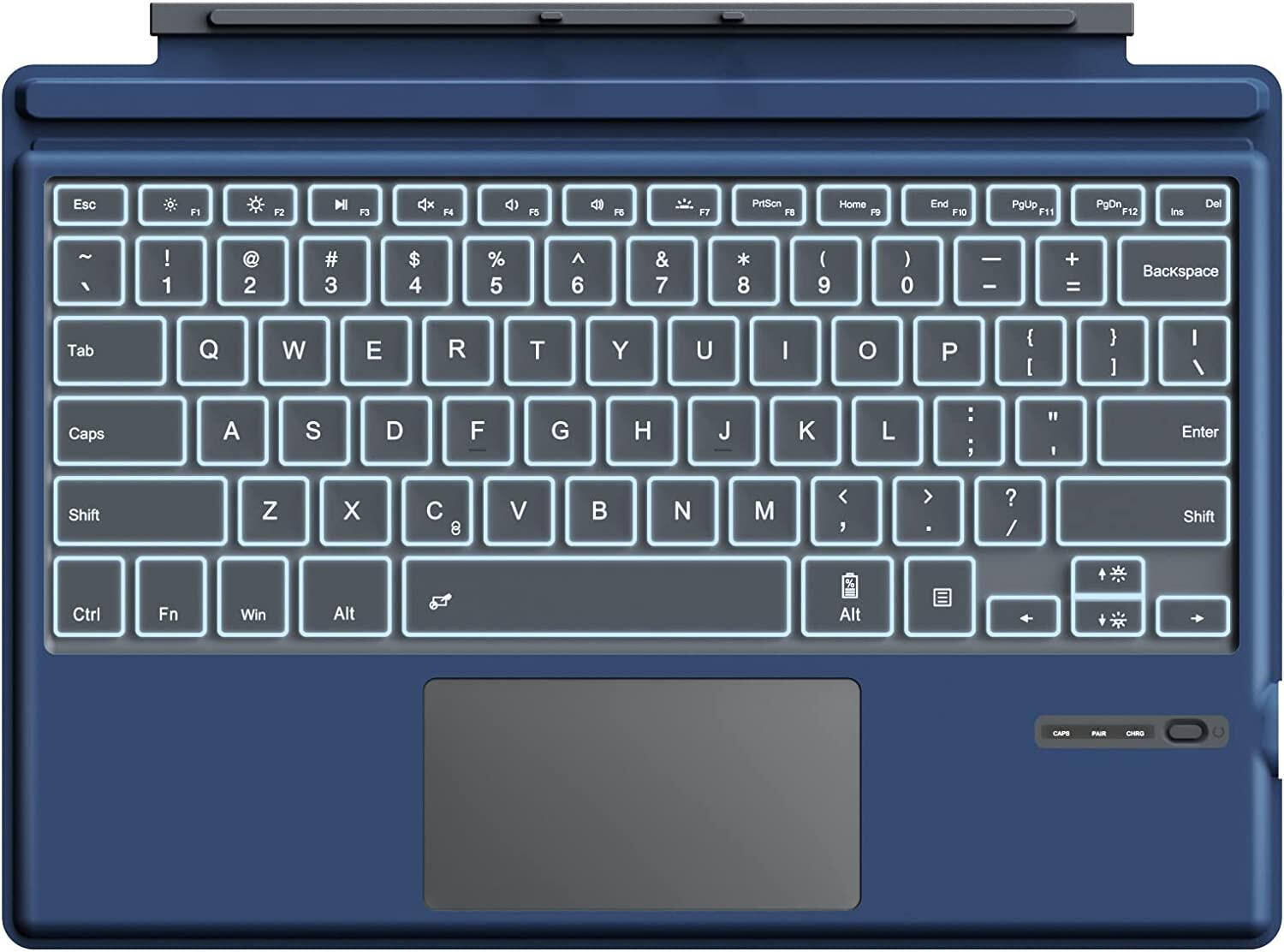
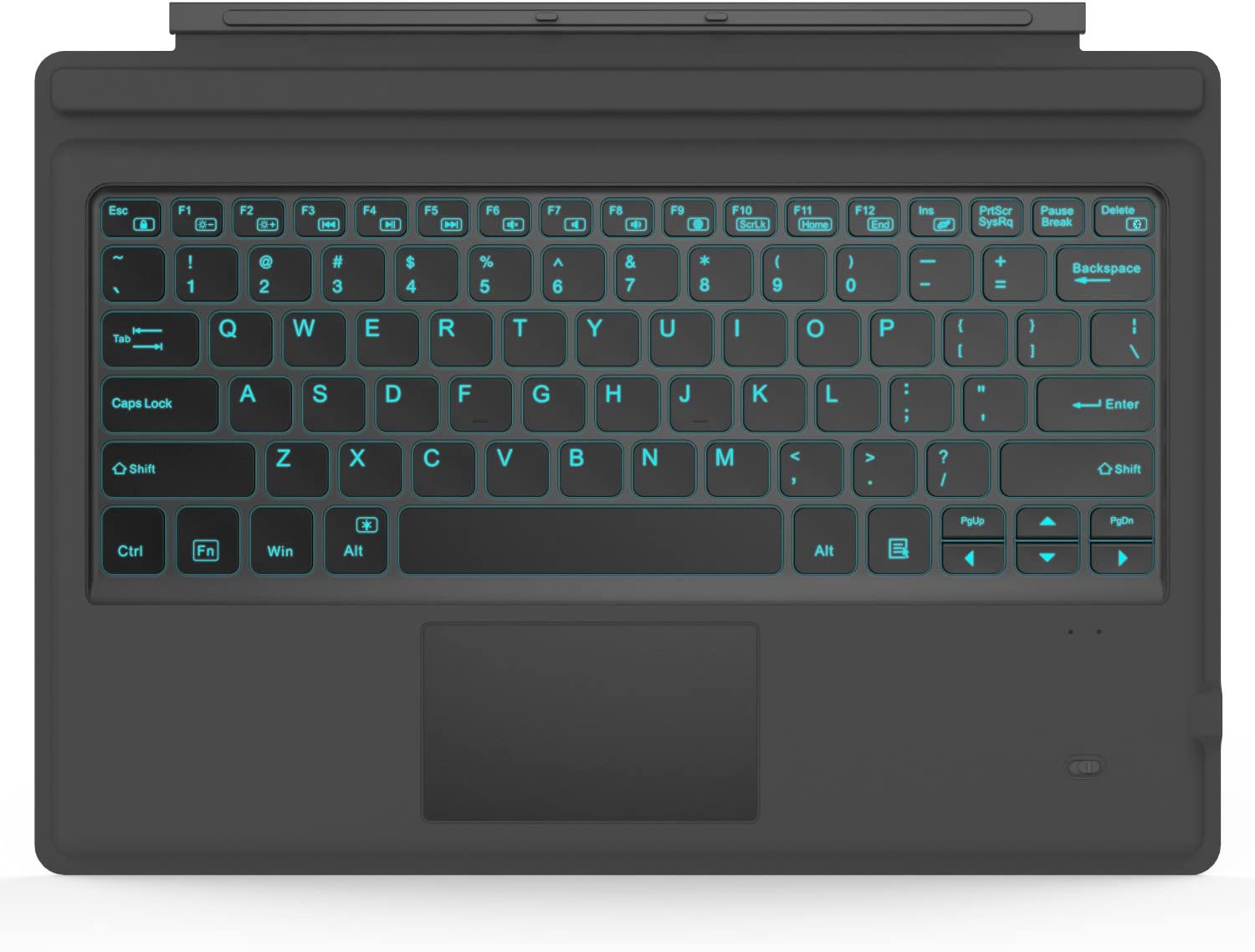
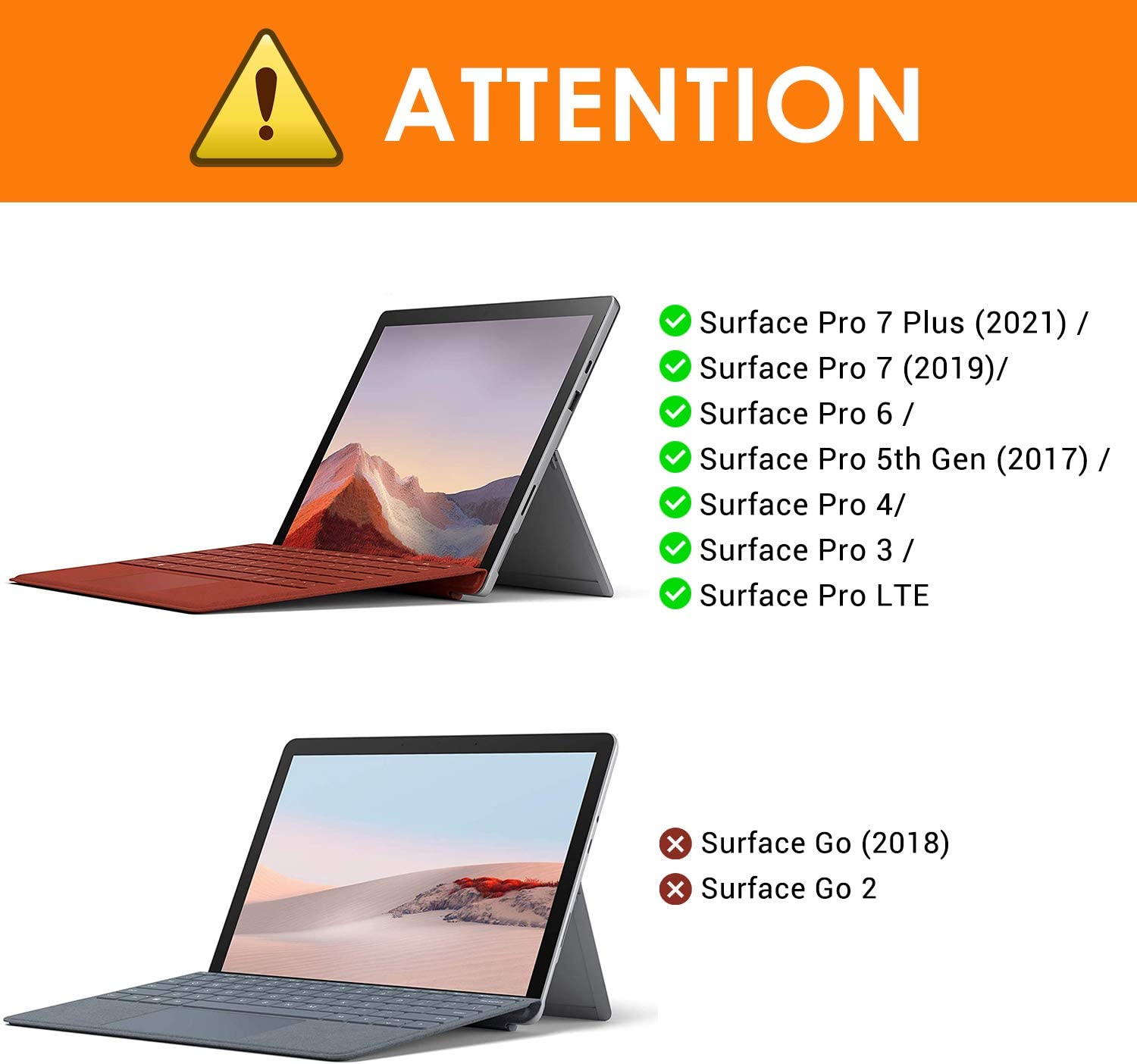
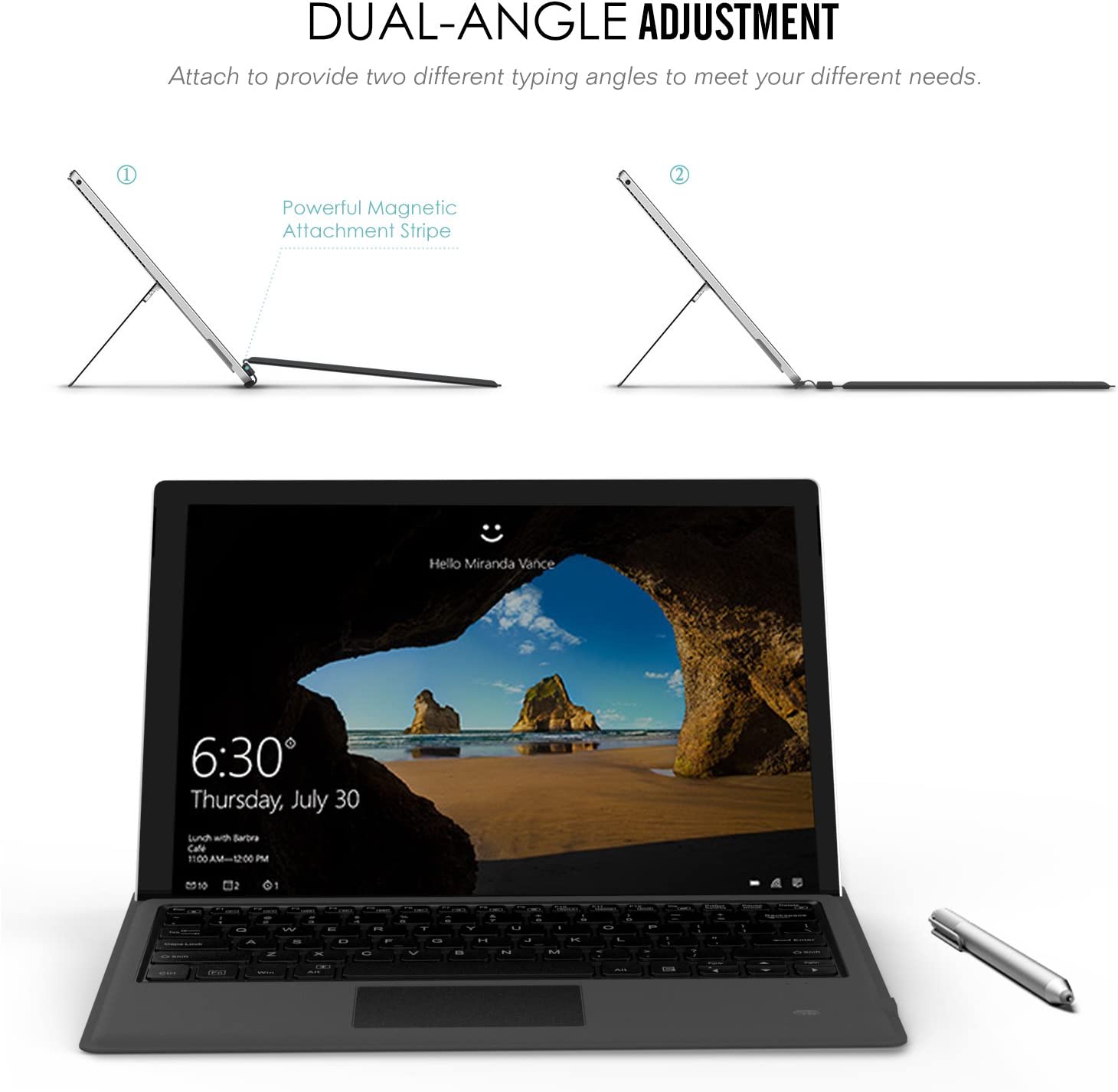
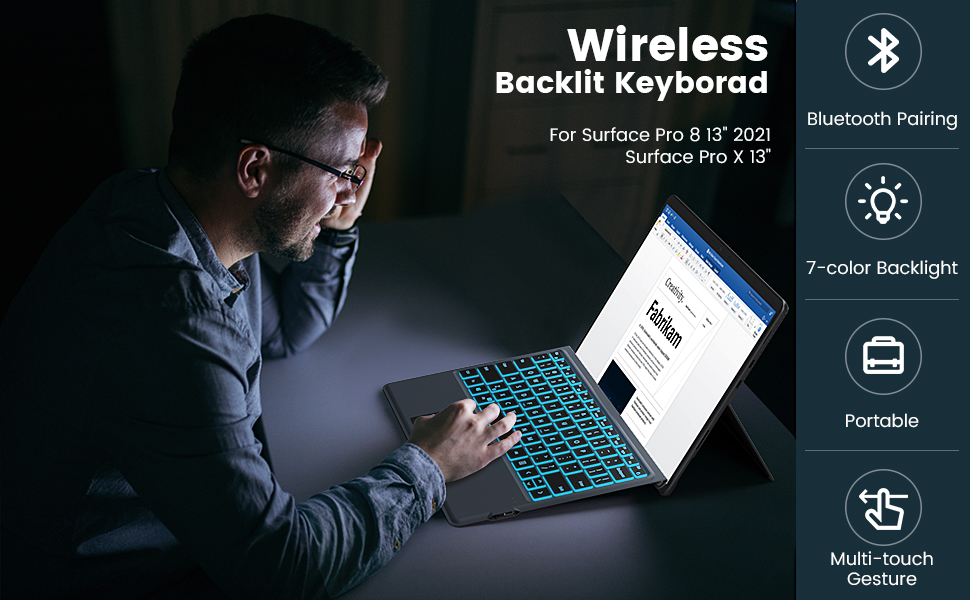
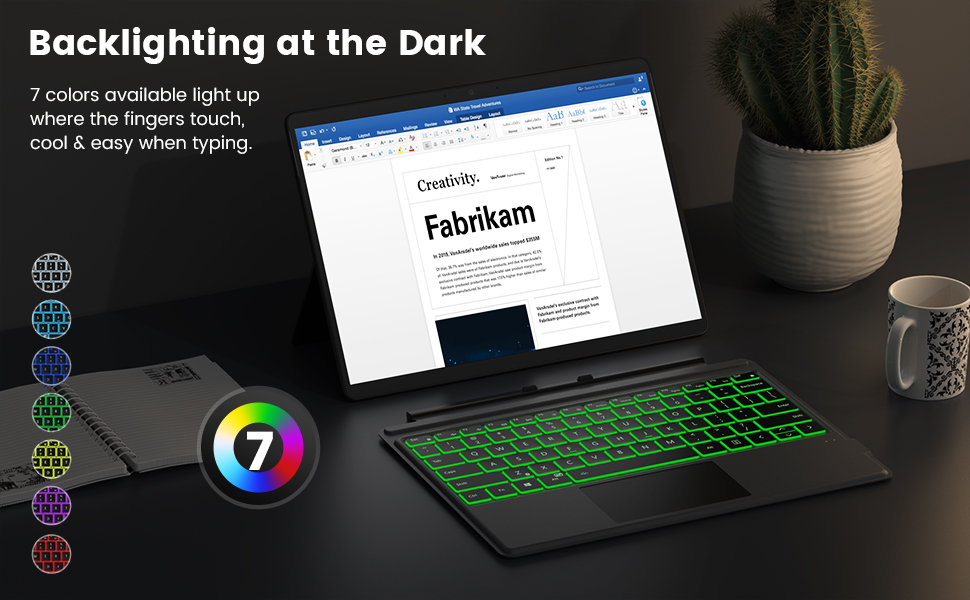
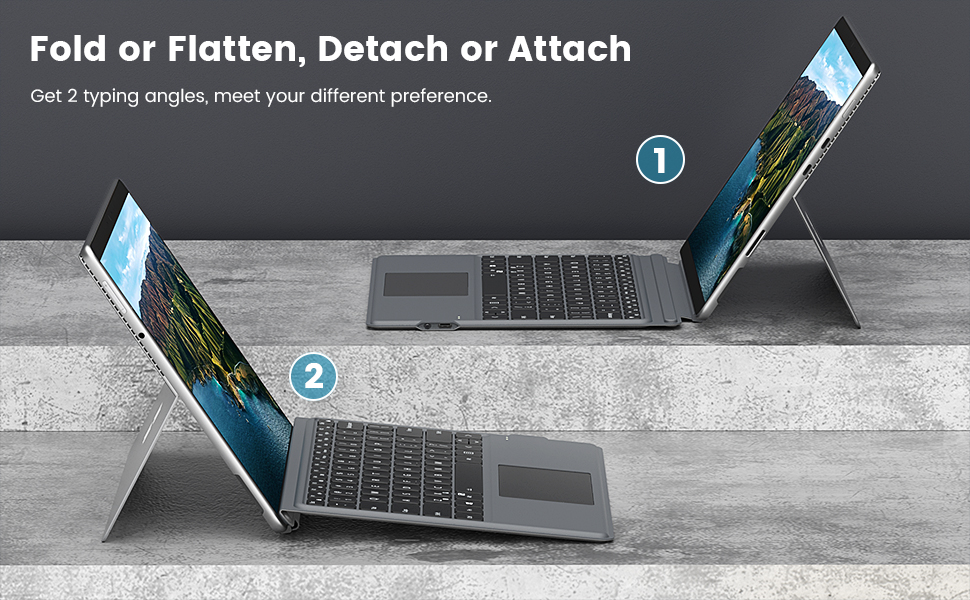
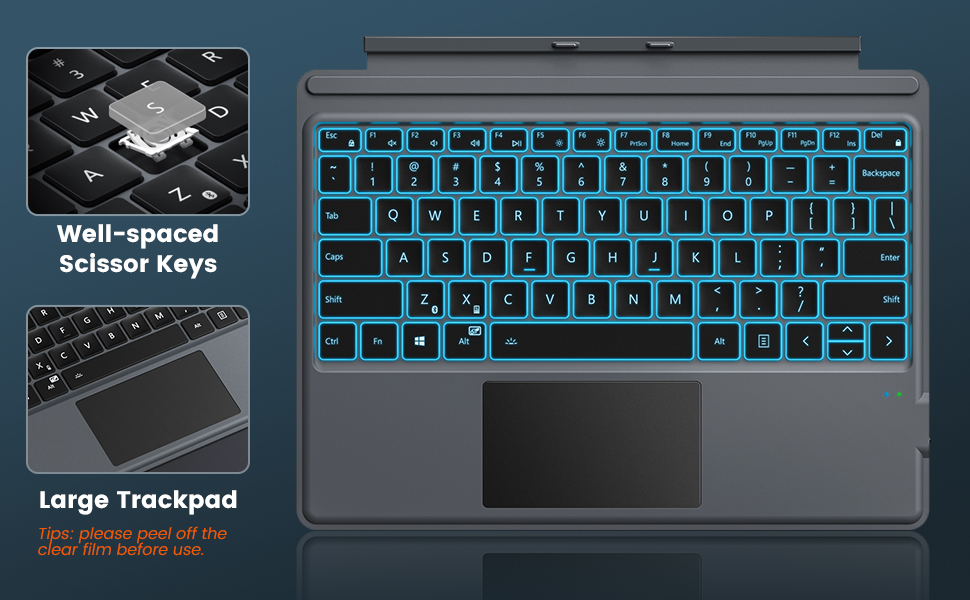
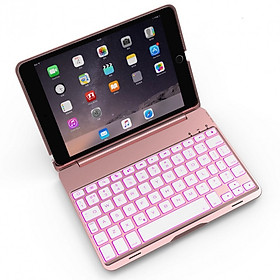
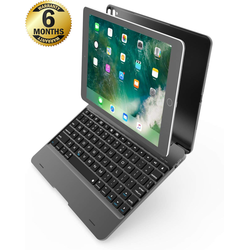
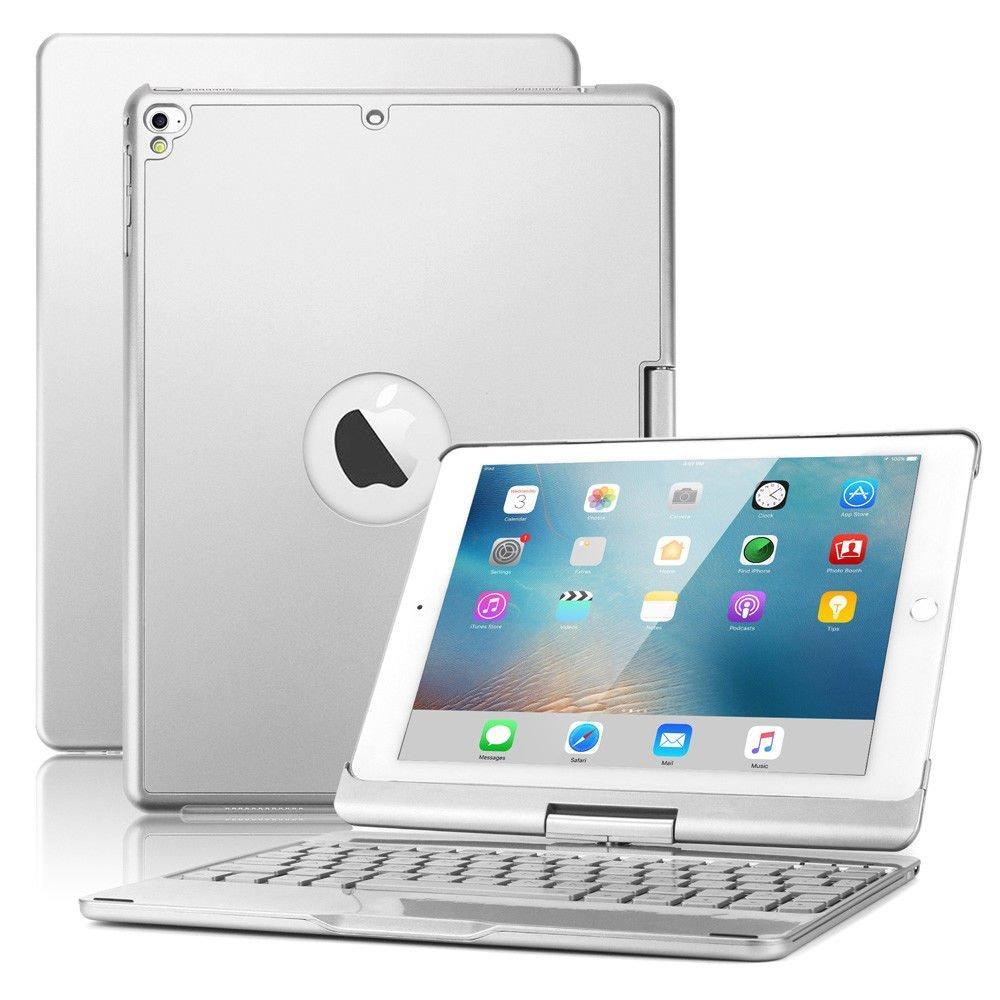
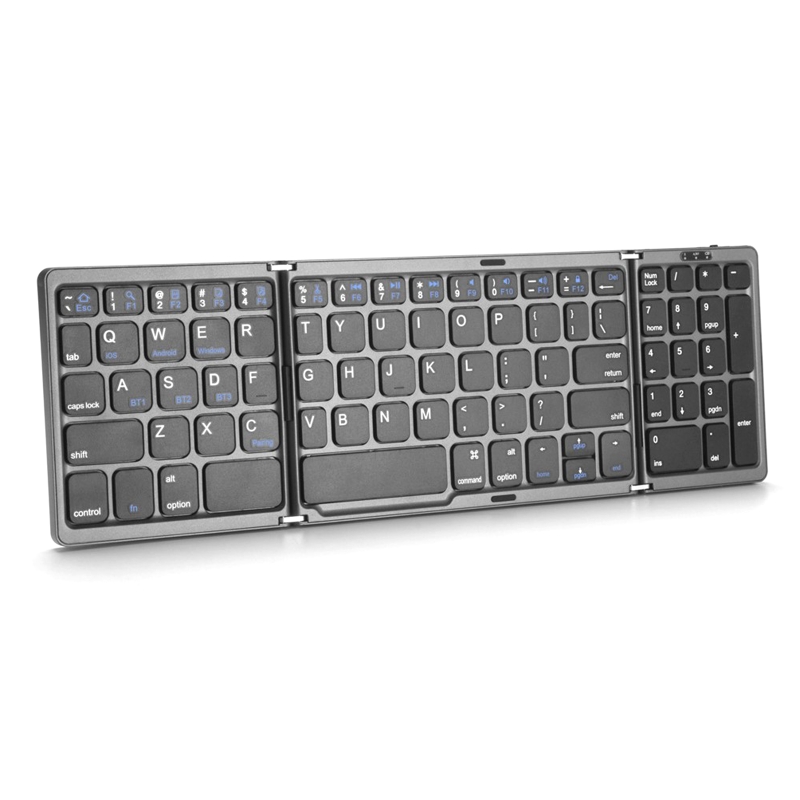
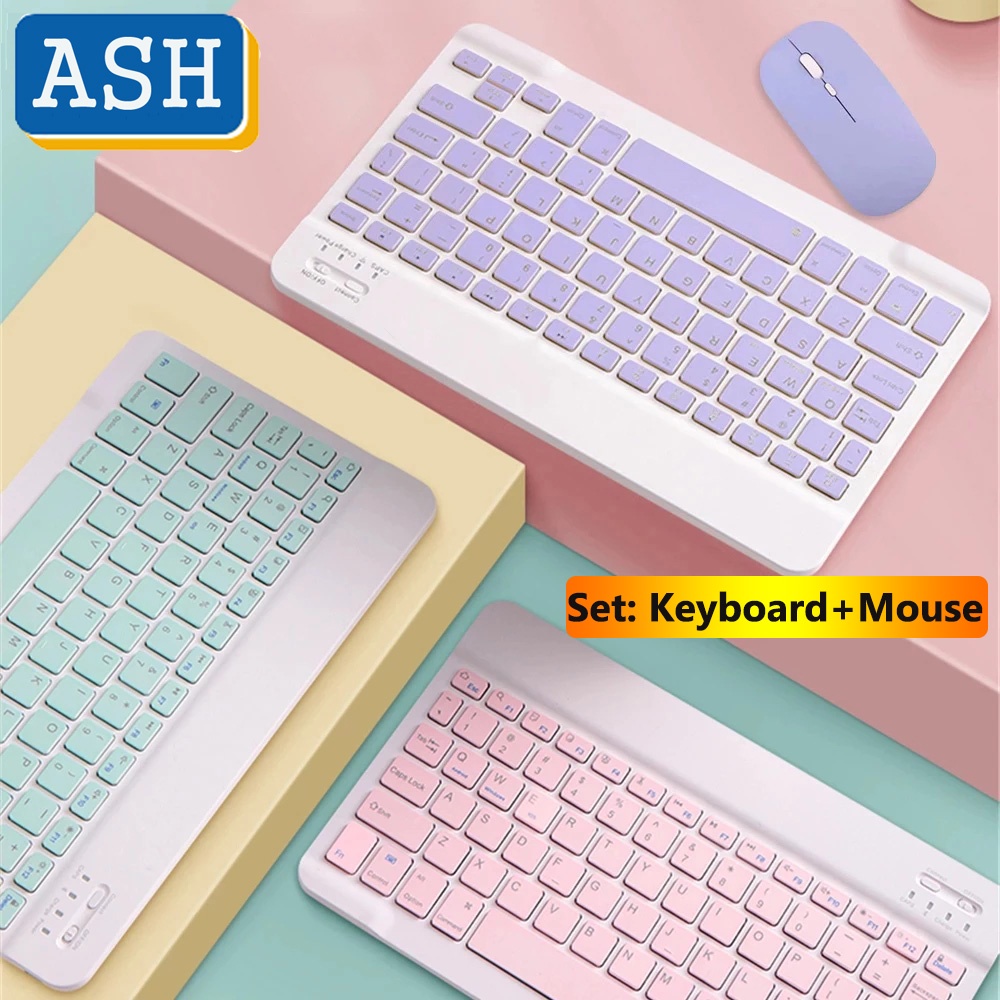
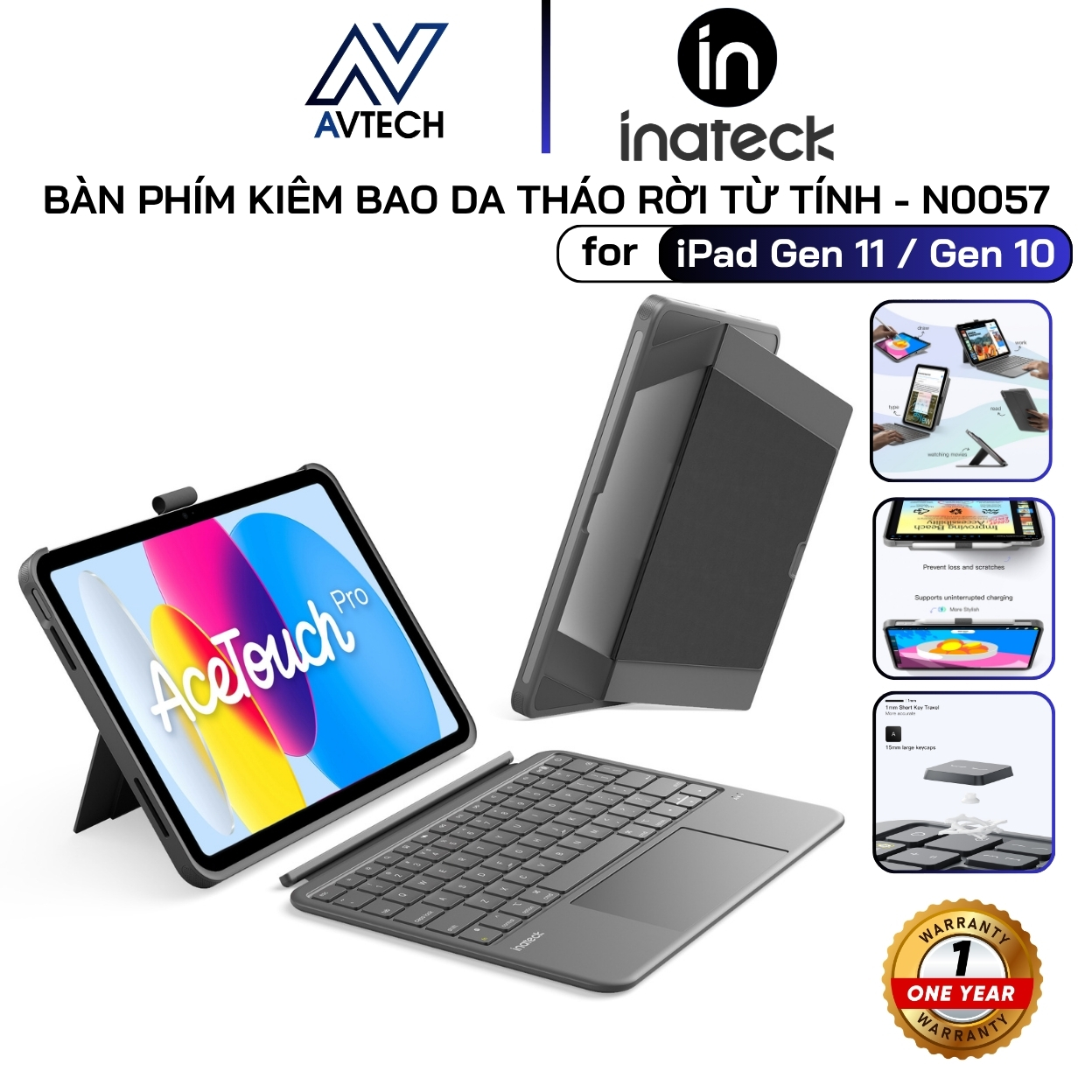
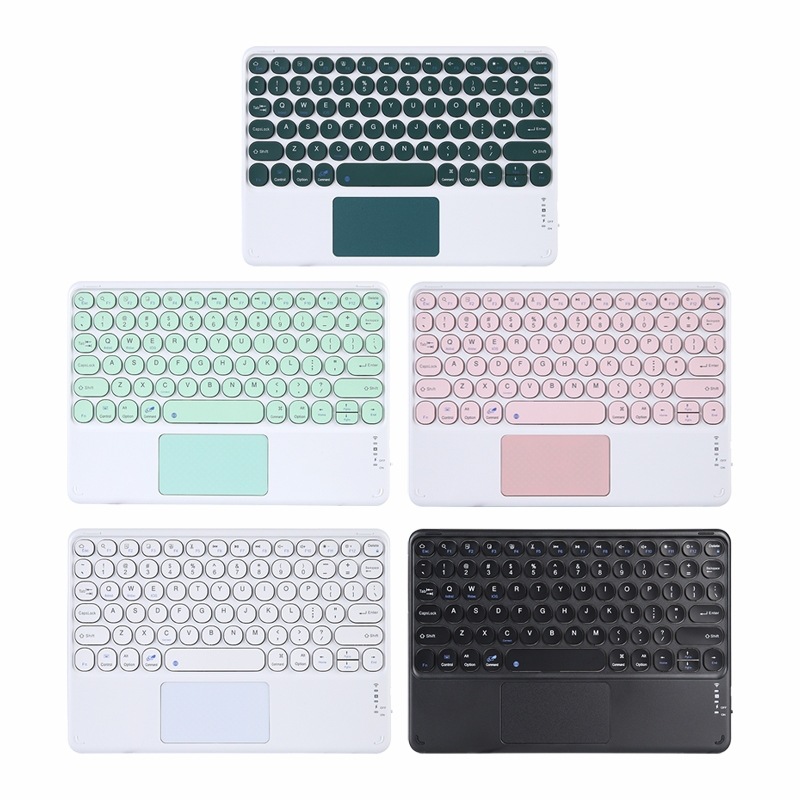
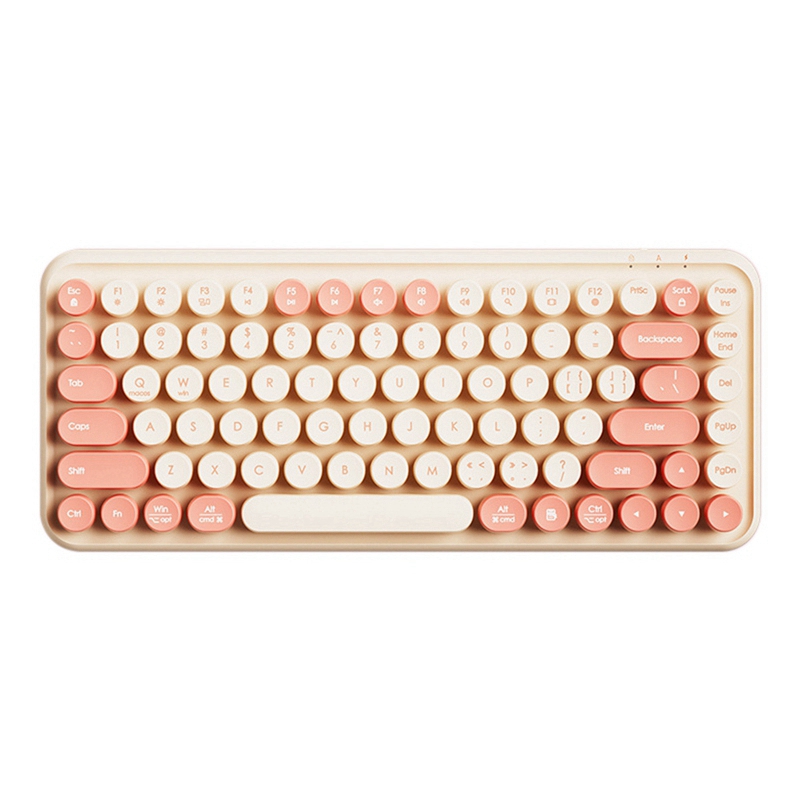
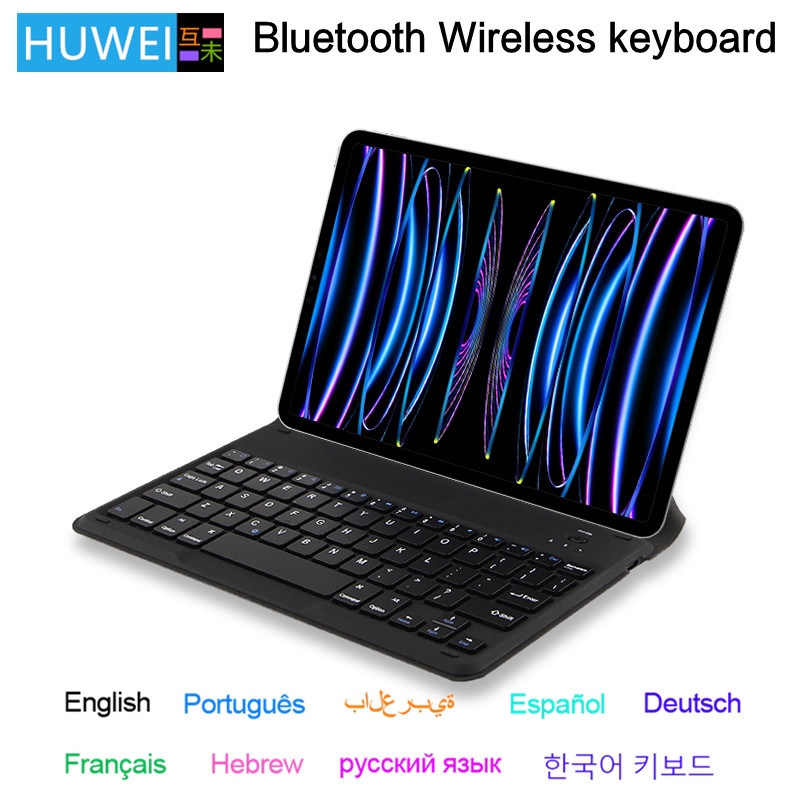
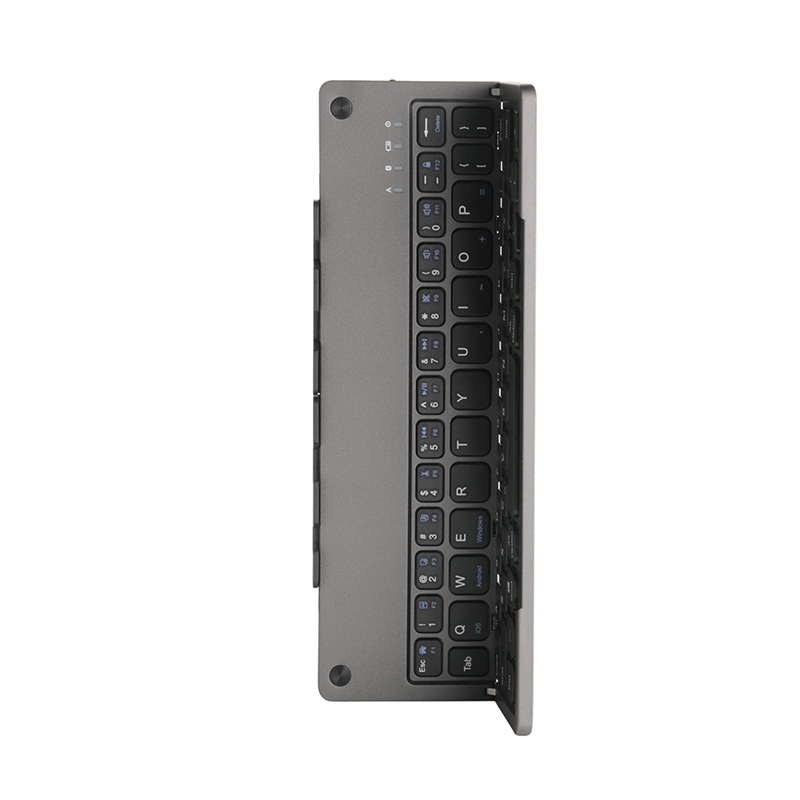
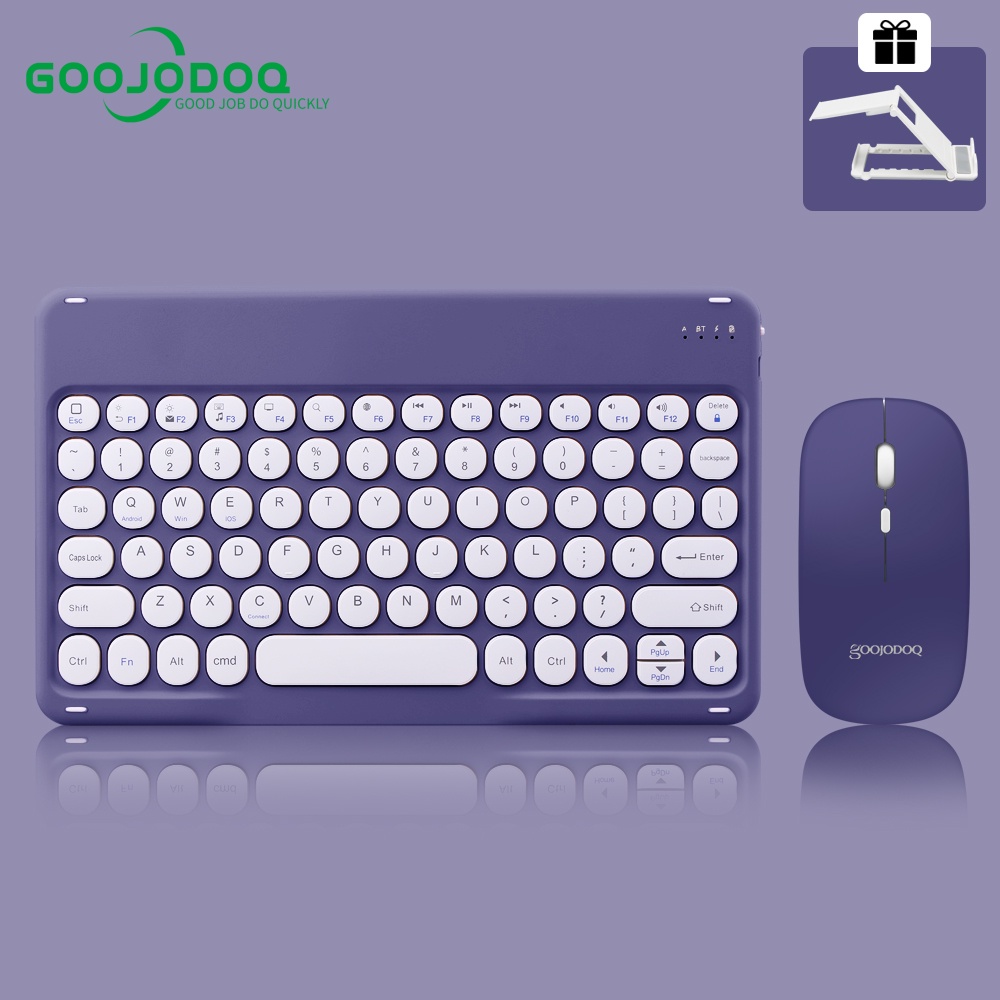
* Personalized ultra-slim bluetooth tablet keyboard. Perfectly fit for Microsoft Surface Pro 7 Plus/ Pro 7/ Pro 6/ Pro 5/Pro 4/Pro 3. * Scissor-Switch keyboard and Ergonomic design brings you pleasing typing experience. Each key sustains up to 3 million keypress times. * Responsive Trackpad: The built-in trackpad gives you the touch screen experience, without having to take your hands off the keyboard. * Low power consumption, built in lithium battery. * 7 Colors LED Illumination Backlit: Red / Green / Yellow / Purple / Cyan / White / Blue. * Each key is back-lit to help when use in low light conditions or at night, and adjustable three-color backlits makes it look more cool and fashionable. * The keyboard is sturdy with enhanced magnetic stability along the fold so you can adjust it to the right angle and work on your lap, on the plane, or at your desk. * Adopts ABS material, Standard TYPE-C interface. Backlit Function Introduction
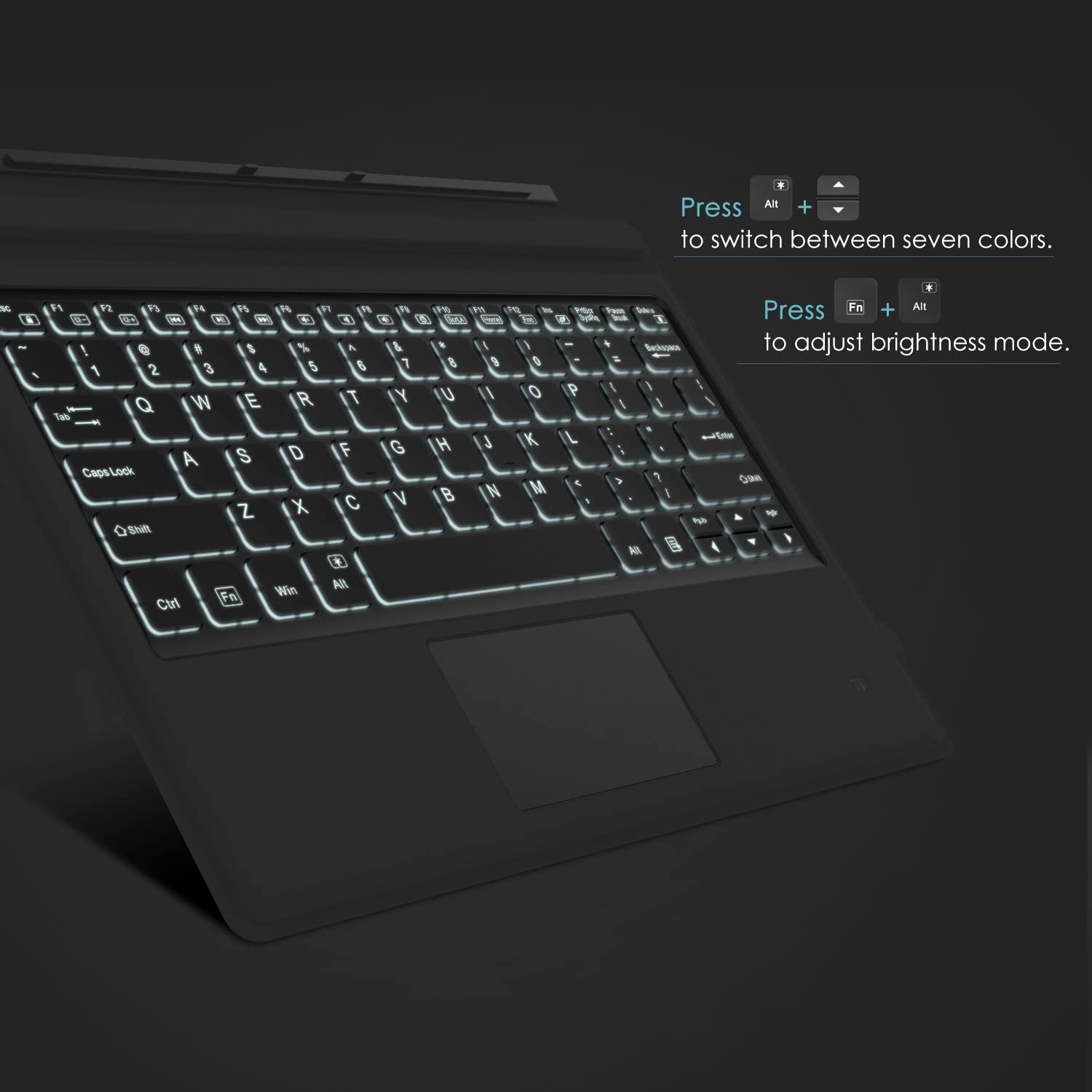
Fn + Alt: Lighting ON/OFF key. Press first time is turning on the light. Press second time is increasing brightness. Press third time is lighting off. Fn + PgUp / PgOn: Changing the backlit colors. Specification:
Working Voltage: 3.0V - 4.2V Working Current:
- Backlit:≤85-120mA
- No Backlit: ≤6-10mA
Continuous working period:
- Backlit: ≥4 H
- No Backlit: ≥ 50H
Lithium battery: 500mAh
Interface: Type-C
Working temperature: -10 to 55 dgree centidegree Note: Bluetooth receiver is not included. So an additional bluetooth adapter will be required if your device is without bluetooth function. Package Content:
1 x Keyboard 1 x USB Cable 1 x User manual
Q1: How to Connect the Keyboard with Your Device?
A1:
Step 1: Push the button to "ON" to turn your keyboard on. The power indicator will light up for 2-3 seconds.
Step 2: Press the“Fn + Bluetooth Key" together to enter pairing mode. The Bluetooth indicator will flash blue.
Step 3: Activate the Bluetooth function on your device.
Step 4: Locate and select“MOKO Keyboard" in your Bluetooth menu. The Bluetooth indicator will turn off after your device has paired successfully.
Q2: What Type of Charging Port is it?
A2: It's Type-C.
Q3: Why Can't the Keyboard Connect with Device?
A3: Please check and try the following instructions.
· Only one keyboard can be connected to one device.
· When connecting it with a new device, need to re-enter pairing mode.
· To reconnect a previously used device, you need to delete the Bluetooth connection record of the device and pair it again.
· Get it charged, or switch it off and on again to start the Bluetooth.
Q4: How to Turn on the Backlit, Change its Brightness and Colors?
A4:
· Backlight ON/OFF: Press Fn + Spacebar
· Adjust Brightness: 1st press "Fn+Spacebar" for ON (low light), 2nd press for increasing the brightness, 3rd press for OFF.
· Change the Colors: Press "Fn + Spacebar + ∧/∨" to switch between seven colors.
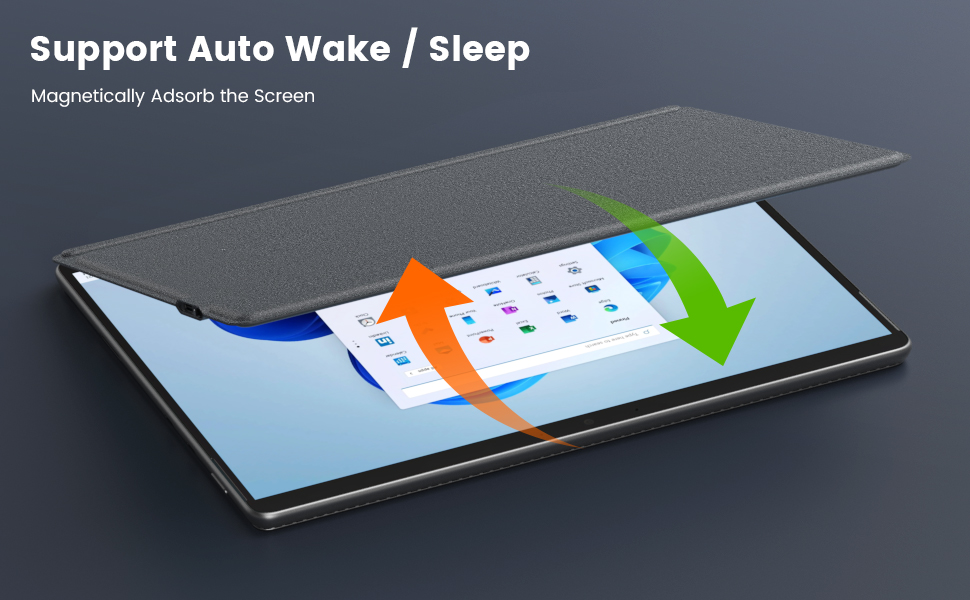
Q5: How do the Wake and Sleep Modes Work?
A5: The keyboard will enter sleep mode after remaining idle for 30 minutes. To wake the keyboard, press any key and wait for 3 seconds.
Q6: Will the Keyboard Automatically Shut Down?
A6: Yes, it will automatically adsorb the screen with an automatic shutdown function.

![[HCM]Dây phin Mazda 626 1998-2002 dùng mobin FSD7-18-140](https://vn-live-01.slatic.net/p/ece6f599543746542801dbf63d6d0800.jpg)

